Upgrade Hard Drive to SSD: A Possible Fix for a Slow Computer
If your computer has been slowing down, it is easy to assume the system is simply getting old.
That conclusion leads many businesses to start pricing new machines. In many cases, that expense is not necessary.
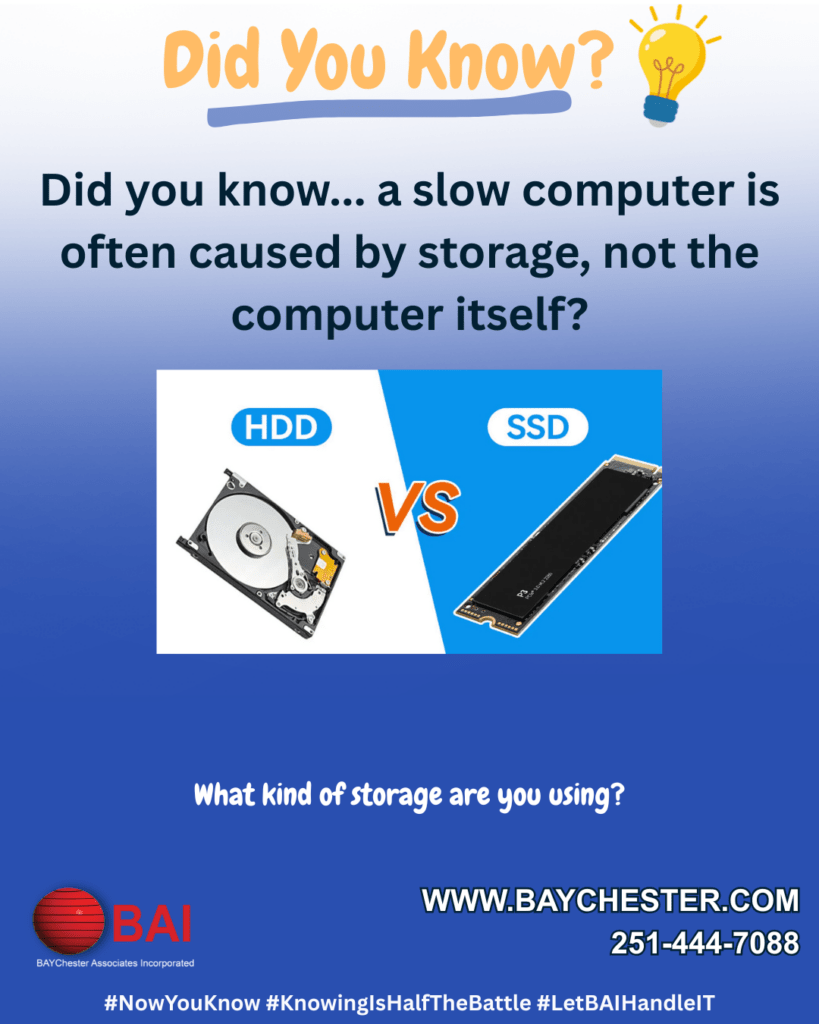
A large number of slow systems are not limited by age. They are limited by storage.
Upgrading your hard drive to an SSD is often the most effective way to restore performance without replacing the entire computer. You have to determine if it is worth it to upgrade your HDD to an SSD.
Why Storage Matters More Than You Think
Every action on your computer depends on your storage drive.
When you start the system, open a program, or save a file, your computer is constantly reading and writing data. If that process is slow, everything feels slow.
Many older systems still use mechanical hard drives. These drives rely on spinning disks and moving parts. Even when they are functioning correctly, they cannot keep up with modern workloads.
That is where the slowdown begins.
HDD vs SSD: What Is the Difference?
A traditional hard disk drive stores data on spinning platters. A read and write arm moves across the surface to access that data. This design introduces delays every time the system needs to locate information.
A solid-state drive uses flash memory instead. There are no moving parts. Data can be accessed almost instantly.
That difference changes how the entire system behaves.
With a mechanical drive, you may notice:
- Long boot times
- Programs taking several seconds to open
- Delays when switching between tasks
- System freezes during updates
When you upgrade your hard drive to an SSD, those delays are greatly reduced or eliminated. For reference 5400 RPM HDD’s will top out at around 130 MB/s read/write speeds. SSDs on the other hand can easily reach read/write speeds of 15,000 MB/s plus.
Replace HDD with SSD Instead of Replacing the Computer
Before replacing a slow computer, it is worth asking a simple question.
Is it worth upgrading HDD to SSD?
In many cases, the answer is yes.
We routinely see systems that feel outdated but are still equipped with capable processors and sufficient memory. Once the mechanical drive is replaced with an SSD, those same systems become fast and responsive again.
This approach has several advantages:
- Lower cost compared to buying new hardware
- Faster performance for everyday tasks
- Extended lifespan of existing equipment
- Reduced downtime during transition
For small businesses, this can be a practical way to improve performance without a full hardware refresh.
Signs Your Hard Drive Is the Problem
If you are unsure whether your system would benefit from an upgrade, look for these indicators:
- Boot times measured in minutes rather than seconds
- Frequent system pauses during normal use
- Slow file searches and file transfers
- Audible spinning or clicking from the drive
- Performance that worsens over time
These are common signs that a mechanical drive is struggling to keep up.
How to Upgrade Hard Drive to SSD Using Disk Imaging
One of the most effective ways to perform this upgrade is to create an exact image of your existing drive and transfer it to the new SSD.
This allows you to keep your operating system, applications, and files intact without starting from scratch.
A widely used tool for this process is Macrium Reflect.
Below is a straightforward process to follow.
Step 1: Prepare Your SSD
- Install the SSD in your system or connect it using a USB-to-SATA adapter
- Confirm that the drive is detected by your system
- Initialize the drive if prompted
Step 2: Install and Open Macrium Reflect
- Download and install Macrium Reflect
- Launch the application
- You should see a list of available drives
Step 3: Select the Source Drive
- Identify your existing hard drive
- Choose the option to “Clone this disk” or create an image
- Select all required partitions, including system and recovery partitions
Step 4: Select the Destination Drive
- Choose your new SSD as the destination
- Adjust partition sizes if needed to fit the new drive
- Confirm that all necessary partitions will be copied
Step 5: Start the Cloning Process
- Begin the clone or imaging process
- Allow the process to complete without interruption
- This may take some time depending on the size of the data
Step 6: Swap the Drives
- Power down the system
- Remove the old hard drive
- Install the SSD as the primary drive
Step 7: Boot and Verify
- Start the system
- Confirm that Windows loads properly
- Check that your files and applications are intact
- Verify improved performance
Important Considerations Before You Begin
Before performing any disk operation, make sure your data is protected.
- Create a verified backup before starting
- Confirm that critical files are accessible from another location
- Ensure the SSD has enough capacity for your existing data
While the process is straightforward, attention to detail is important. A missed step can result in data loss or a failed boot.
A Practical Upgrade with Immediate Results
Upgrading your hard drive to an SSD is one of the simplest ways to improve system performance.
It addresses a common bottleneck that affects everything from startup time to daily productivity. For many businesses, it is a more practical solution than replacing hardware that still has useful life remaining.
If your systems are slowing down, the issue may not be age at all. It may be the drive.

For more information or to schedule a consultation About your business’s tech, contact Baychester Associates.
TECHNOLOGY MADE SIMPLE…